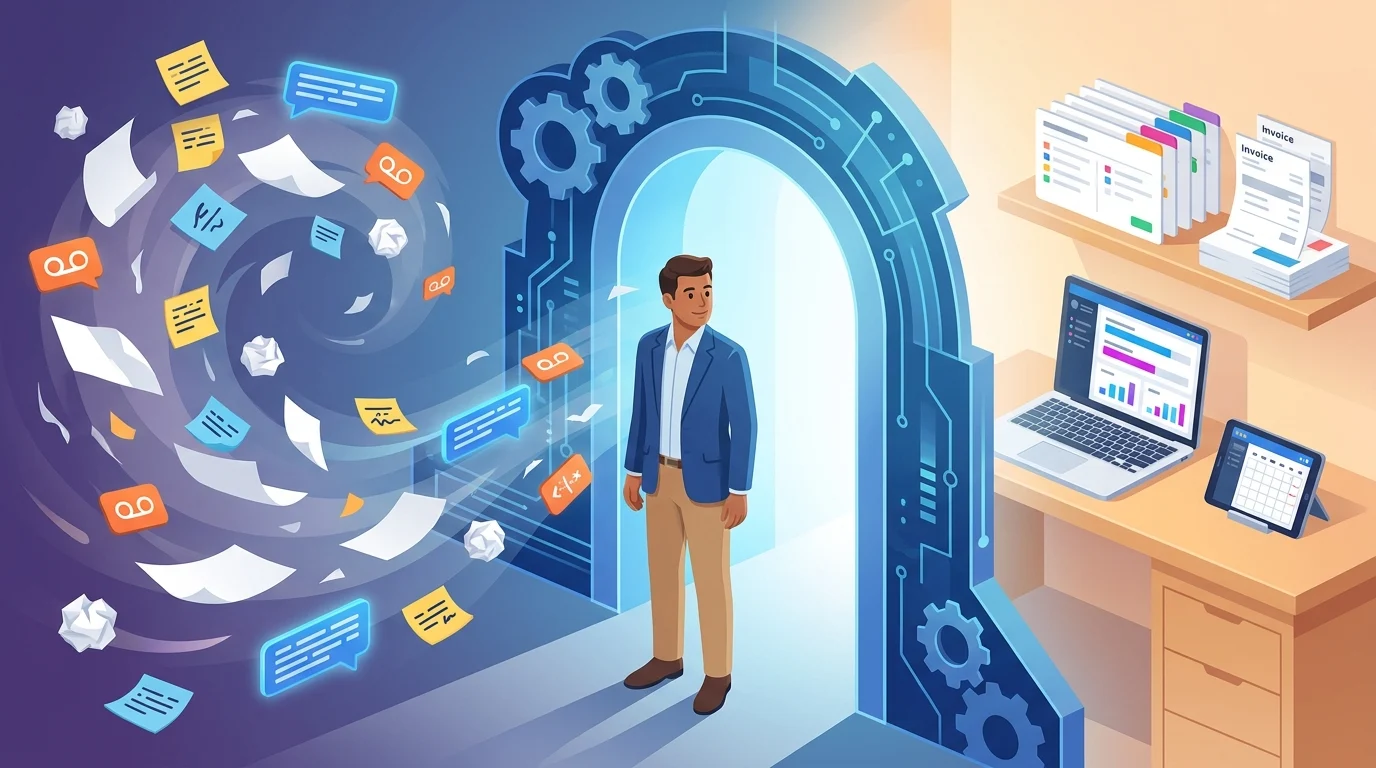


The work wrapped up Thursday. By Tuesday, the invoice is still a draft because the purchase-order number is buried in a text message and you’ve been on job sites since Friday. Your customer’s payment clock hasn’t even started.
For owners serving Kingsville, Ontario and the Windsor-Essex Region, that gap can put pressure on payroll, supplier bills and the next project. Automated invoicing gives small business owners a way to send accurate bills promptly, offer convenient payment options and schedule payment reminders. The setup starts with identifying where invoices stall. A system can help you get paid faster when the details feeding it are complete and the payment terms are agreed.
Where Manual Invoicing Leaks Time and Money
Finished Work Sits Unbilled
A completed service call or approved consulting milestone can sit in your notebook until billing day. Meanwhile, you’ve already paid for labour, materials or subcontractors. Each delay pushes back the customer’s opportunity to pay and leaves you carrying those costs longer.
Consider a hypothetical electrical contractor who completes a commercial repair on Monday but sends the invoice Friday. With payment due 30 days after invoicing, that administrative gap adds 4 days before the bill becomes due. A recurring Friday billing habit builds that delay into the workflow.
Missing Details Send Invoices Back
Commercial customers may require a purchase-order number, job address, project code or approval from a named manager. Send an invoice without a required detail and it may sit outside their payment queue while someone asks for a correction.
Professional services face a similar snag when the invoice description doesn’t match the agreed milestone. “Services rendered” gives an accounts-payable clerk very little to check against an approved scope.
Vague Terms Create Avoidable Questions
“Payment due soon” leaves room for interpretation. Agreed terms, a specific due date, applicable taxes and clear payment instructions give the customer something definite to act on. Deposits and progress payments also need their triggers settled before work begins.
Scattered Follow-Ups Consume Owner Time
An invoice lives in your accounting software, a payment promise arrives by text, and a dispute lands in email. Before following up, you’re reconstructing the conversation. Someone else might send another reminder while you’re sorting out a billing question.
That fragmentation makes collection work repetitive and increases the chance of an awkward message after payment. Invoice automation needs a shared record of invoice status, customer replies and payments so reminders reflect what’s actually happening.
Automated Invoicing Small Business Owners Can Use to Get Paid Faster
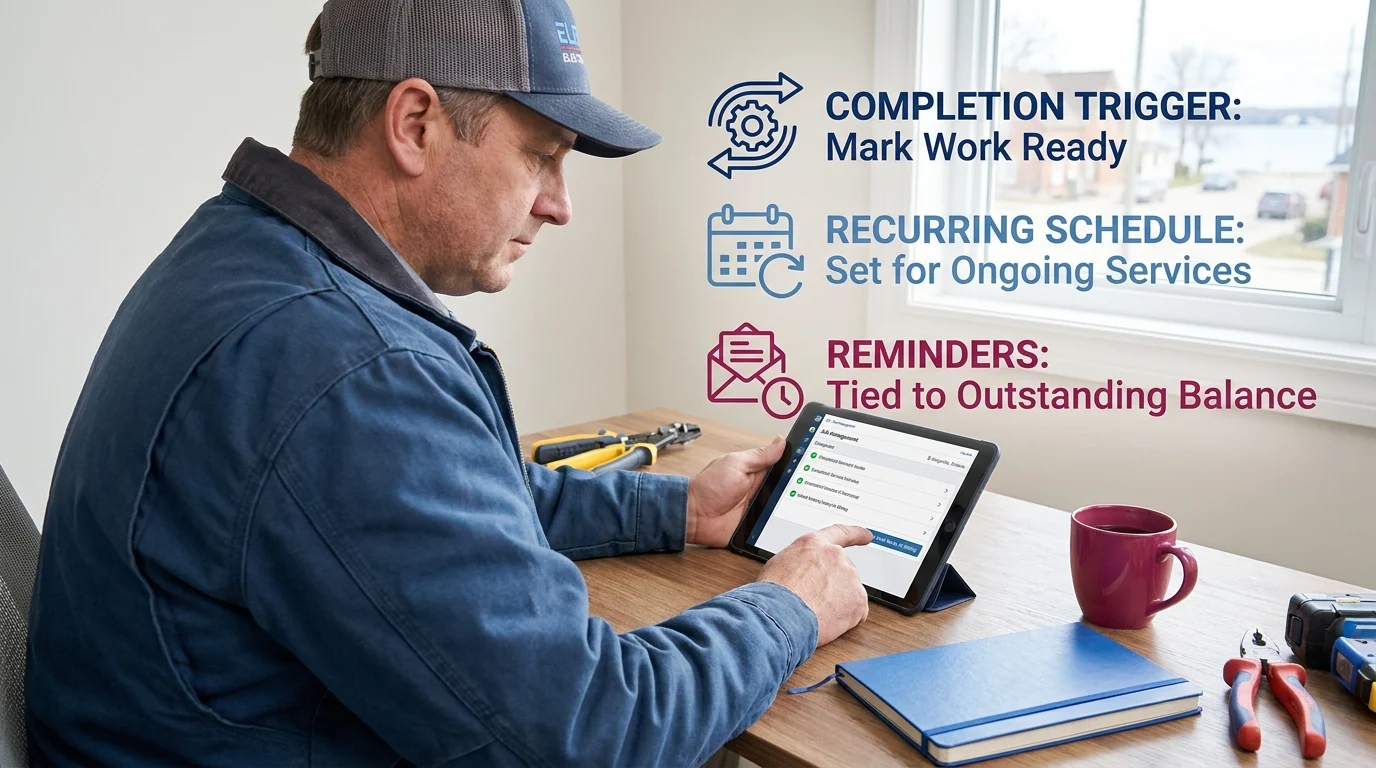
Automated invoicing gives small business owners a repeatable path from completed work to a payable bill. The useful pieces are a completion trigger, a recurring schedule where appropriate, and reminders tied to the outstanding balance.
Turn Completed Work Into an Invoice
Consider a hypothetical electrical contractor serving Kingsville, Ontario and the Windsor-Essex Region. Its job record includes the customer’s billing email, approved charges and a completion status. The owner checks those details before marking the work ready for billing.
A supported connection between the job-management tool and accounting software can use that status to create an invoice draft. QuickBooks Online or Xero can handle the accounting side; confirm what your chosen connection actually supports before relying on automatic sending.
For variable repair work, keep an approval step. Predictable, pre-approved charges may suit automatic sending once you’ve tested the workflow.
Put Repeat Work on a Schedule
If that contractor also provides an agreed monthly maintenance service, recurring invoices can remove the repeated drafting task. Configure the customer, amount, tax treatment, billing frequency and end date or review date.
Recurring billing suits stable agreements. Completion-triggered invoices suit jobs with changing scope. Review scheduled invoices whenever a contract changes or service pauses.
Let the Balance Control Reminders
An adjustable reminder schedule might send a message 3 days before the due date and 7 days after it. Configure reminders to stop when a payment is recorded against the invoice and its balance reaches zero.
Payments received outside the connected system need prompt recording and matching. Partial payments should leave only the remaining balance in follow-ups. Pause reminders during disputes. Test each condition before enabling the sequence for customers.
Online Payment Options That Remove the Last Obstacle
A customer opening your invoice on their phone should be able to choose a payment method immediately. For a local business, online payments work best when convenience, fees and bookkeeping effort fit the size of the bill.
Invoice-Linked Card Payments
Cards suit customers who want to pay immediately, particularly for smaller service invoices. QuickBooks Payments is one option to check if you already invoice through QuickBooks Online; confirm availability and pricing for your Canadian account.
Percentage-based processing fees grow with the invoice amount. Check the full fee schedule, including refunds and chargebacks. Customer payment confirmation and settlement into your bank account happen separately; payout schedules, weekends and holds can affect access to funds.
Bank Payments for Larger Invoices
Supported bank-payment or pre-authorized debit options can suit larger consulting bills and recurring service agreements. Compare your platform’s Canadian bank-payment offering with cards: fees may be lower, while authorization requirements and processing times differ.
For pre-authorized debits, obtain the required customer agreement before collecting funds. Check how pending payments, failed debits and returns appear in your accounting software, so a submitted payment doesn’t get mistaken for settled cash.
Interac e-Transfer for Familiarity
Interac e-Transfer gives customers a familiar banking option. Fees, sending limits and receipt timing depend on the financial institutions and account plans involved. Autodeposit removes the security-question exchange.
Ask customers to include the invoice number in the transfer message. Matching may require manual work when the sender’s name differs from the billed business.
Compare the total handling cost. Connected payments can simplify matching, but verify that your integration records processing fees separately and reconciles net deposits to the correct invoices.
Set Up Invoice Automation Around the Way You Work
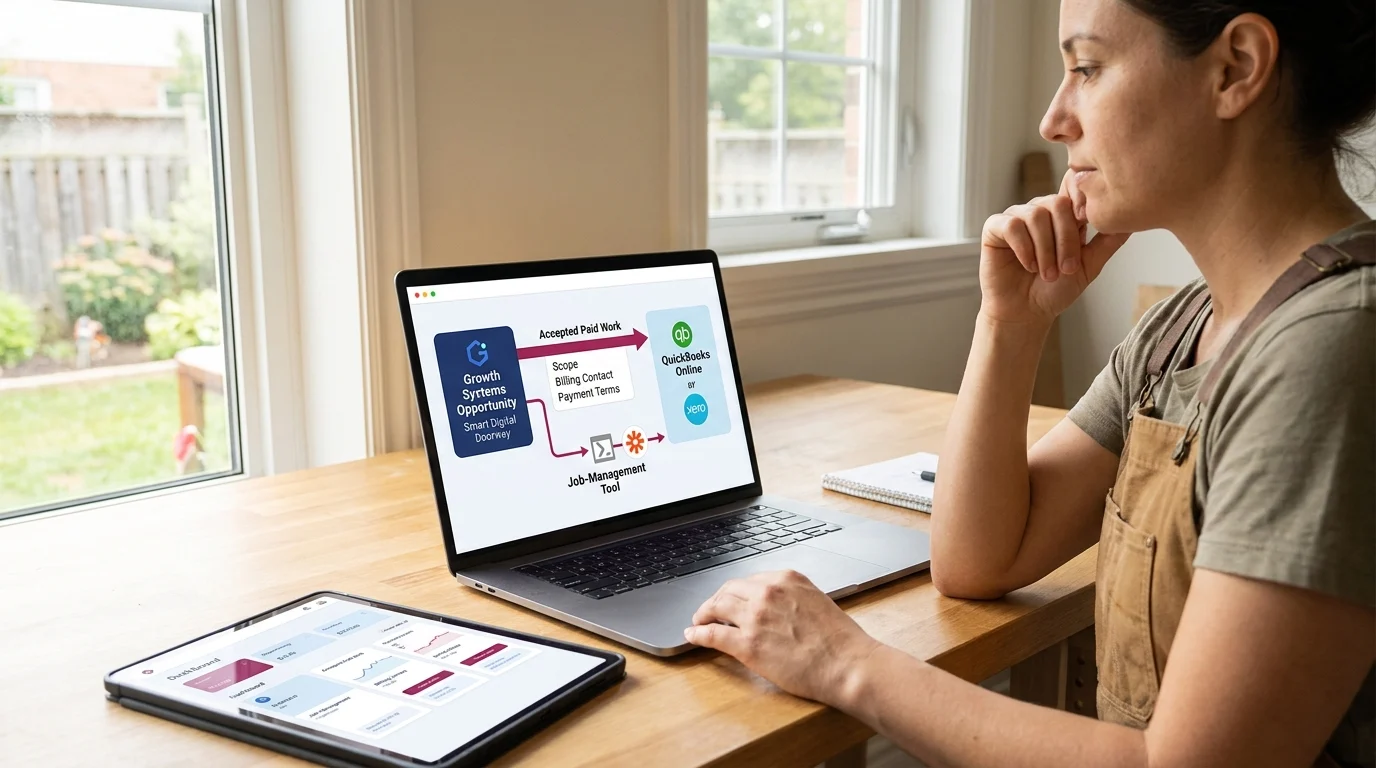
Invoice automation belongs inside your Growth Systems Opportunity Smart Digital Doorway: a connected system that attracts attention, answers questions, builds trust, captures leads, and converts prospects into customers. Carry the agreed scope, billing contact and payment terms from accepted paid work into invoicing.
Connect Your Existing Accounting Tools
Keep your accounting software as the master invoice record. If QuickBooks Online or Xero already handles your books, check its built-in workflows first. Native automation suits work billed directly from accounting; Zapier can connect a separate job-management tool when its supported triggers and actions fit.
Map customer name, billing email, job reference, approved amount, tax treatment and invoice status before switching anything on. Use a unique job reference to prevent duplicate invoices, and test the connection with a draft. An enquiry or booked appointment needs its own status, separate from accepted paid work.
Write Terms and Exception Rules
Agree on deposits, billing milestones and due dates before work starts. Choose the event that permits billing, such as documented milestone approval. Set reminder timing around those terms; any schedule should remain adjustable.
Create a hold status for disputed charges, approved extensions and credits awaiting review. Assign someone to clear each hold before reminders resume. Check that a customer reply reaches a monitored inbox.
Assign Oversight and Protect Customer Information
Name a billing owner and backup. Have them review failed automations, overdue balances and held invoices weekly, adjusting that cadence to volume.
Give staff individual accounts, enable multi-factor authentication and restrict access by role. Keep card details out of email and job notes; use the payment provider’s hosted checkout. Review connected-app permissions and remove access when staff or suppliers leave.
What To Do Monday Morning
Review What’s Already Overdue
Export your unpaid invoices and sort them by due date. Check each balance against recent receipts before deciding which accounts need attention. Separate genuinely overdue amounts from payments awaiting reconciliation.
Create a simple tracker in Google Sheets, or use an accounting report if it supports the fields you need: invoice number, workflow category, issue date, due date, full-payment date, days to payment and minutes spent chasing. Leave full-payment date blank until the balance clears.
Choose One Billing Workflow
Pick a recurring service or frequently completed job with consistent billing requirements. Monthly maintenance suits scheduled invoicing; project work suits billing triggered by an approved milestone. Start with whichever produces fewer exceptions in your business.
Use recently settled invoices from that category to establish typical days to payment. Start logging chasing minutes now if you haven’t recorded them previously. Mark any retrospective time estimates clearly.
Test the Complete Sequence
Use the platform’s test environment where available, with an internal recipient. Preview the invoice on a phone, check the amount and due date, and follow the payment path. Keep test transactions separate from genuine receivables.
Run the reminder sequence using adjustable test timings. Confirm that an unpaid invoice receives the intended message, a settled invoice stops receiving reminders, and delivery failures become visible. Record any failure before the pilot goes live.
Measure Before Expanding
Calculate days to payment from issue date to full-payment date. Compare the pilot with your baseline using similar invoice terms and work types. Review chasing minutes alongside overdue invoices still open, since settled invoices alone can flatter the result.
Expand after a complete billing cycle gives you usable evidence. Fix failed messages or reconciliation delays first.
Key Takeaways
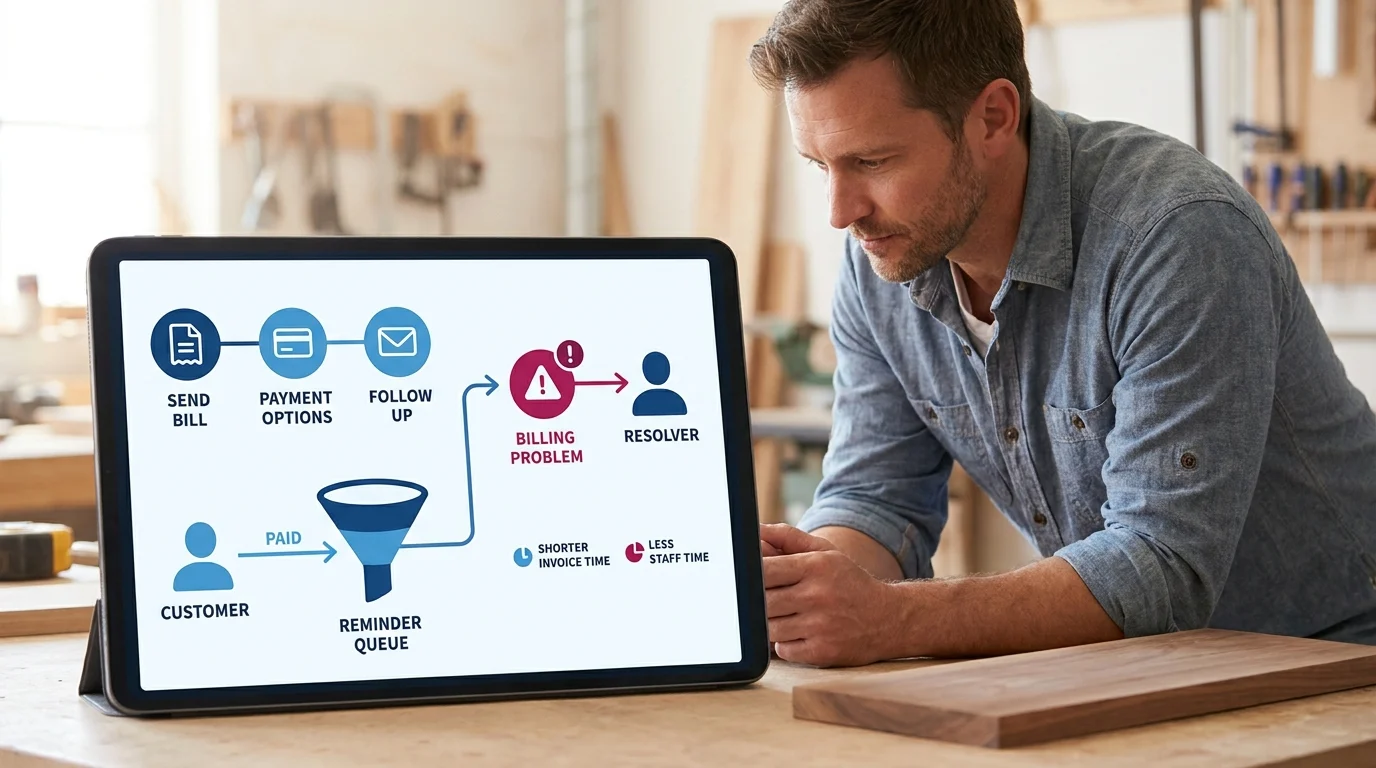
Automated invoicing gives a small business a repeatable way to send bills, offer payment options and follow up when money remains outstanding. Its value depends on accurate records and messages that reflect what’s actually happening with the account.
A customer who has already paid should move cleanly out of the reminder queue. A billing problem should reach someone who can resolve it. Those details protect trust while keeping routine administration manageable.
The Growth Systems Opportunity Smart Digital Doorway carries that customer relationship through payment. Judge it by observable changes: how long invoices stay open, how much staff time collection takes and whether exceptions get handled promptly.
A small, measured rollout gives you evidence for the next decision. Build on the workflow that earns its place in your week.
Want this fitted rather than figured out? Doorways Into Your Business helps owner-operators put systems like this in place. Book a free consultation.
Paul Hughes founded Doorways Into Your Business after more than five decades consulting across 30+ countries, from implementing early IBM email systems in the 1980s to running multi-million-dollar IT projects for global organizations. A St. Clair College graduate (1976), he settled in Kingsville, Ontario in 2019 to help local small businesses grow with practical “smart digital doorways”, websites, customer service, reviews, bookings, and payments, matched to what a business needs, not unnecessary technology.
All articles by Paul →